Connect Minds to ChatGPT: set up the MCP app
Minds runs in ChatGPT as an MCP app: under Plugins → Add → Create MCP App, enter the server URL, sign in to Minds with OAuth, and pick Minds in a chat with @Minds.
Minds is the end-to-end platform for commercial synthetic research. With the ChatGPT integration you find your Audiences, plan a Study, review the proposed research plan, and read results inside a ChatGPT conversation. ChatGPT talks to the Minds MCP server at https://getminds.ai/mcp, and you sign in with your Minds account over OAuth.
Requirements
- ChatGPT on the web at chatgpt.com. Set up happens in the browser; afterwards Minds is also available in the ChatGPT apps.
- A Minds account. If you don't have one, you can sign up during the first connection.
- Permission to add your own MCP apps. In ChatGPT Business, Enterprise and Edu, the workspace admin decides whether members may add custom apps; depending on your account you may need to turn on developer mode. See OpenAI's developer mode guide.
Which option fits?
ChatGPT groups extensions under Plugins. You connect Minds in one of three ways:
| Option | When | Sign-in |
|---|---|---|
| MCP app with server URL (recommended) | Works in any account that may add custom MCP apps. | OAuth with your Minds account |
| Plugin from the directory | Only if Minds appears in the plugin directory for your account. | OAuth with your Minds account |
| MCP server in the desktop app | ChatGPT desktop app with Plugins → MCPs. | OAuth or Minds API key |
Create plugin and Upload plugin archive are for ChatGPT's own plugin format. You don't need them for Minds: Minds is an MCP server and is added as an MCP App.
Building on the OpenAI API yourself? Pass the Minds MCP server in the tool call instead; see MCP setup.
Option A: add Minds as an MCP app
1. Create the MCP app
In ChatGPT, open Plugins in the sidebar and choose Add → Create MCP App at the top right.
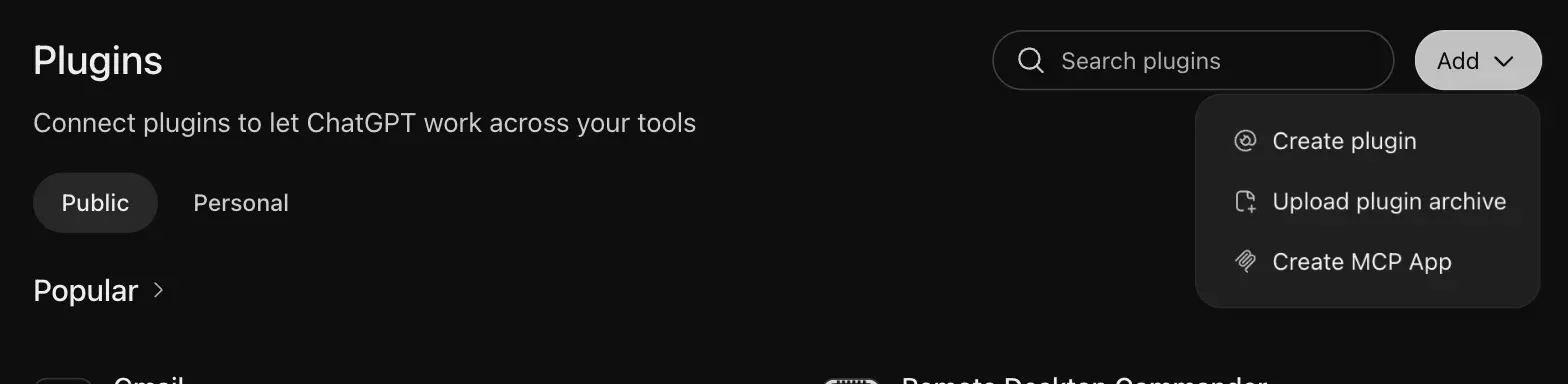
If Create MCP App is missing, your account can't add custom apps yet. Turn on developer mode or ask your workspace admin to allow custom MCP apps.
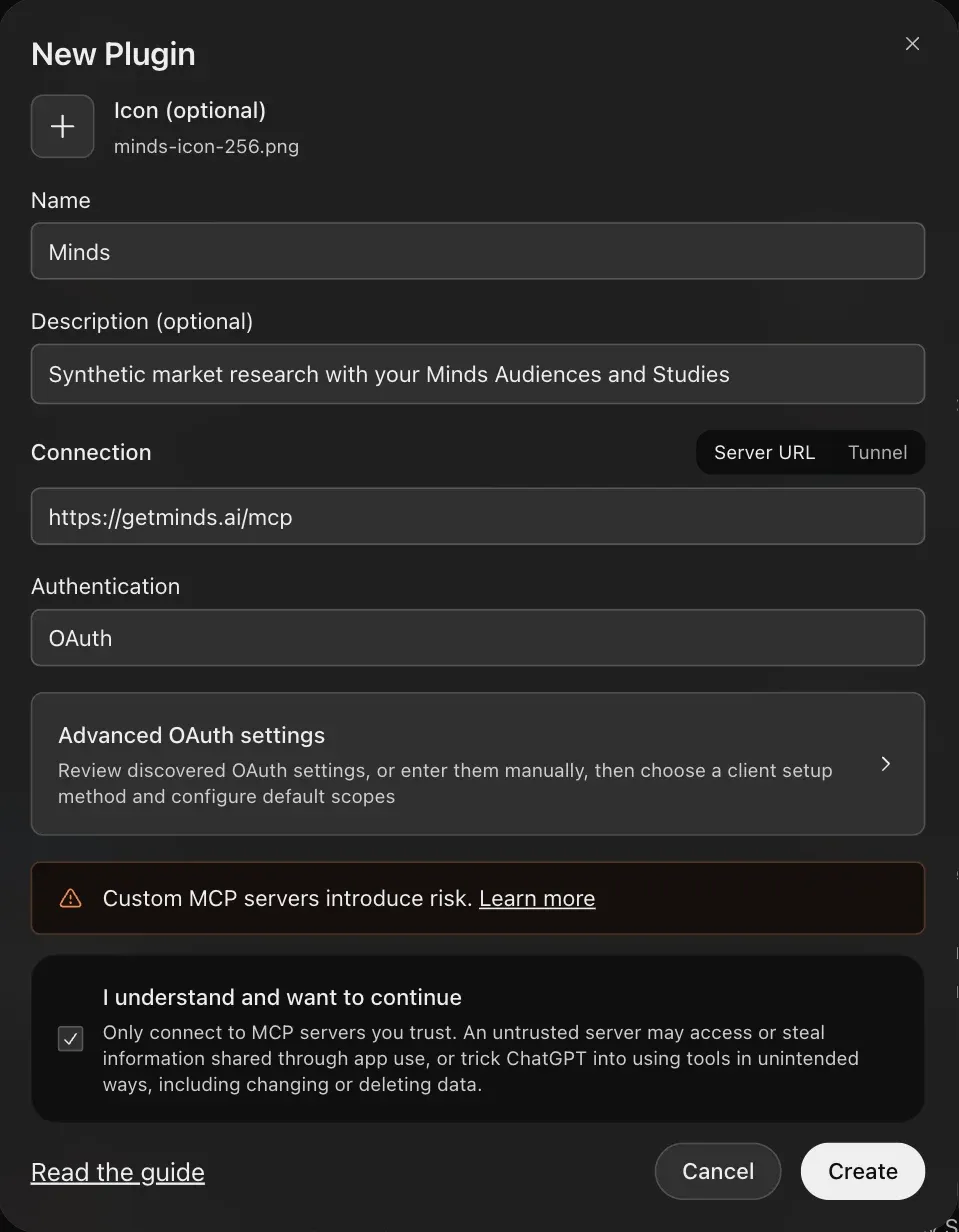
2. Fill in the form
| Field | Value |
|---|---|
| Icon (optional) | Minds logo as PNG, 10 KB or smaller |
| Name | Minds |
| Description (optional) | e.g. Synthetic market research with your Minds Audiences and Studies |
| Connection | Server URL: https://getminds.ai/mcp |
| Authentication | OAuth |
Confirm I understand and want to continue and click Create.
3. OAuth settings (optional)
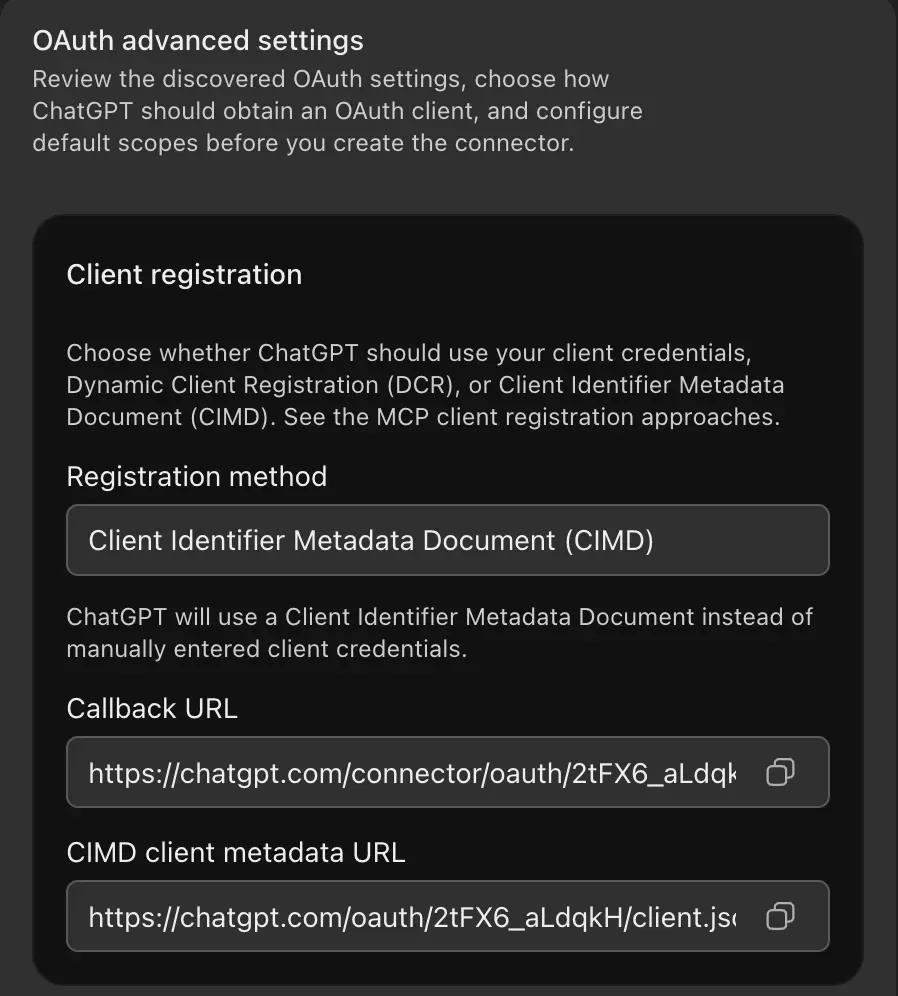
Advanced OAuth settings shows what ChatGPT discovered. You don't need to change anything: ChatGPT picks Client Identifier Metadata Document (CIMD) as the registration method. Minds also supports Dynamic Client Registration (DCR). You don't need a client ID or client secret.
4. Confirm the connection
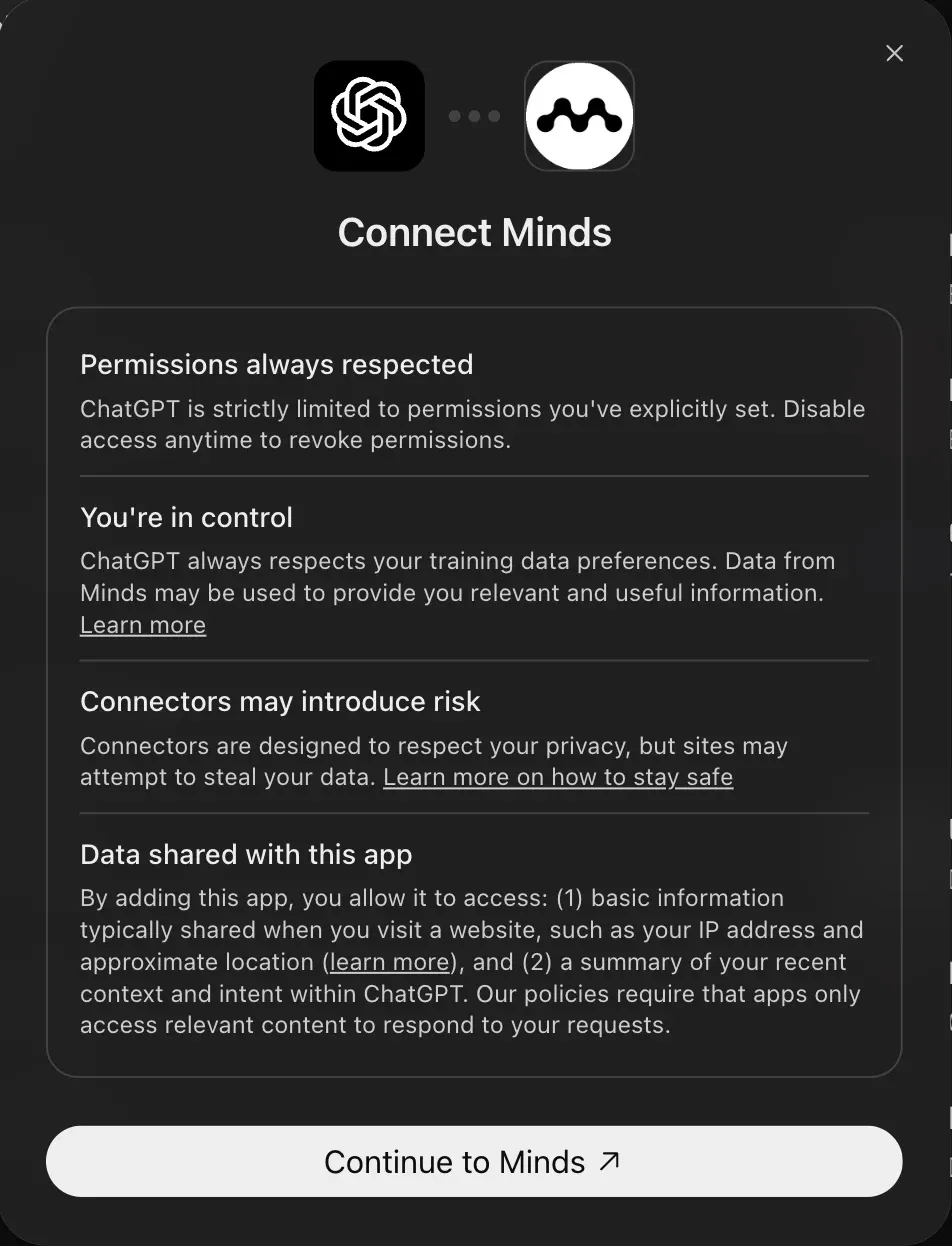
After Create, ChatGPT opens Connect Minds. Click Continue to Minds.
5. Sign in to Minds and allow access
Sign in to Minds if you aren't already. Minds then asks whether ChatGPT may use your account and lists the permissions. Click Allow. ChatGPT confirms the connection, and Minds appears under Plugins → Installed.
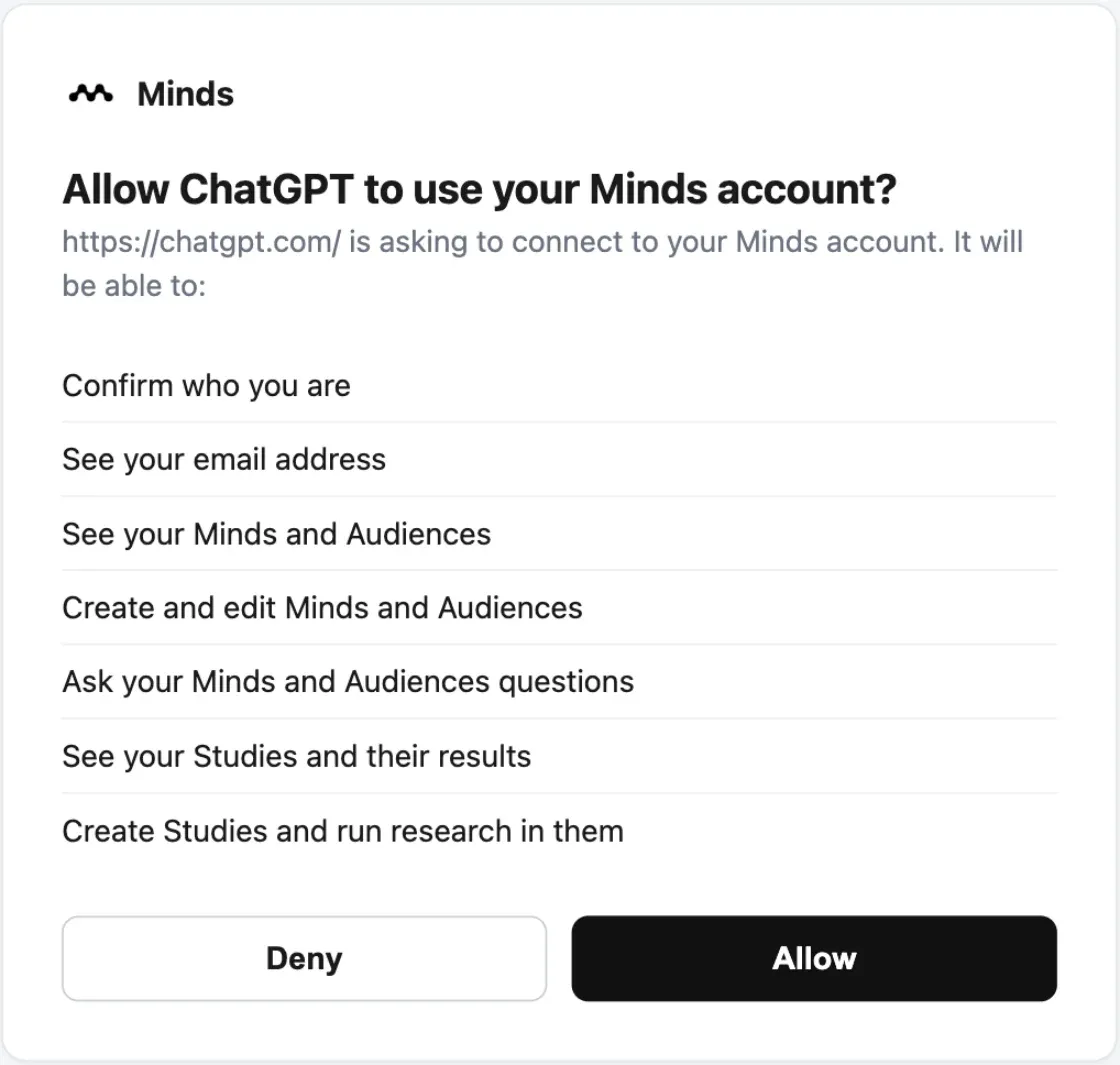
Connect the Minds account that owns your Audiences and Studies. With a different account you only see that account's content.
6. Use Minds in a chat
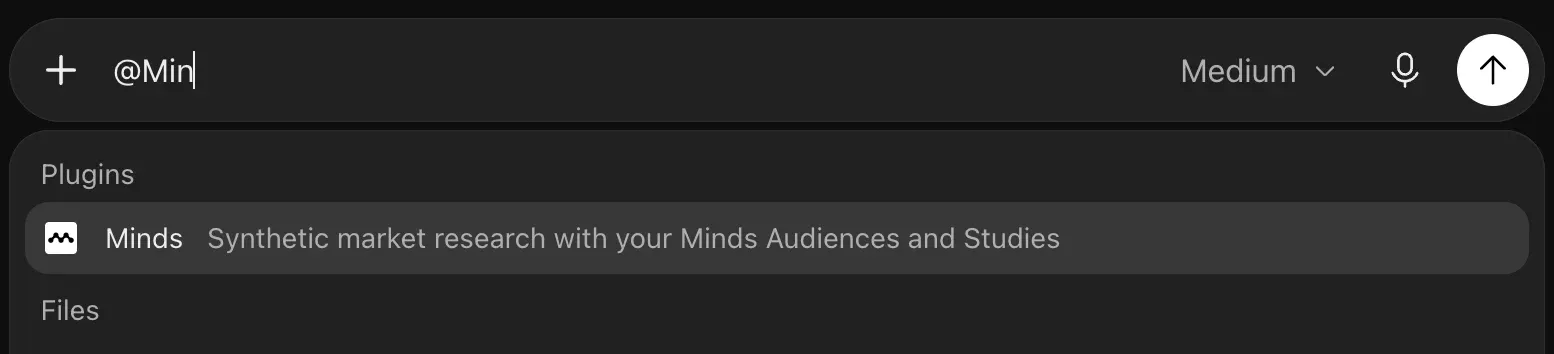
In a new chat, type @Minds and pick Minds, or add it from +. Then ask your question, for example "List my three most recently updated Audiences".
Option B: Minds from the plugin directory
Search Plugins for "Minds". If Minds shows up for your account, click + and follow the same sign-in from step 4. If Minds isn't listed, use option A: the MCP app offers the same features.
Option C: add Minds as an MCP server in the desktop app
The ChatGPT desktop app manages MCP servers under Plugins → MCPs. There you connect Minds directly as an MCP server.
1. Open "Add MCP server"
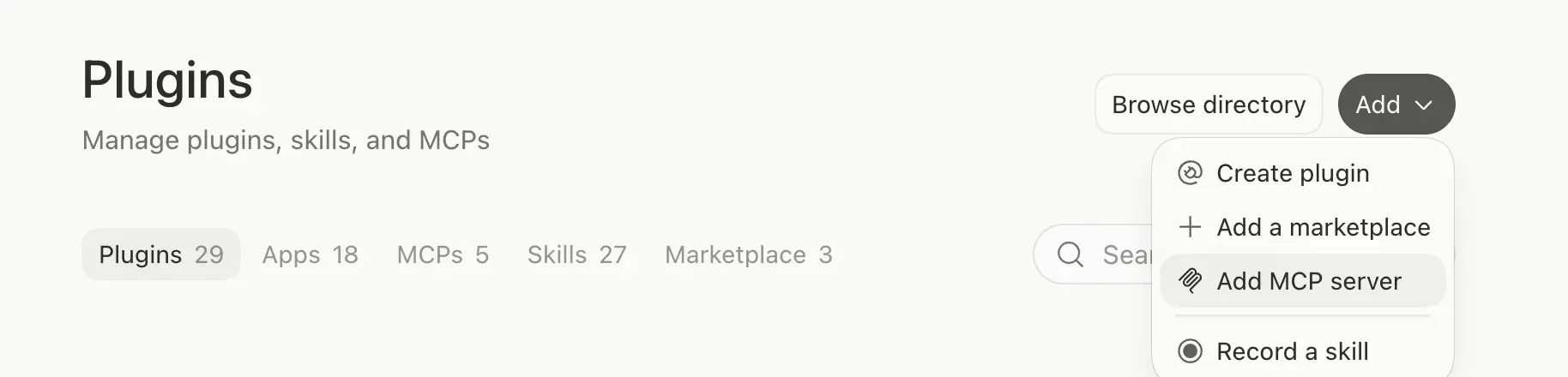
Open Plugins and choose Add → Add MCP server. The same form is also under Settings → MCP servers → Add server.
2. Fill in the form
| Field | Value |
|---|---|
| Name | minds |
| Type | Streamable HTTP |
| URL | https://getminds.ai/mcp |
| Bearer token env var | Empty for OAuth, or MINDS_API_KEY for an API key |
3. Save and sign in
Click Save, then Restart. In the server list, Minds shows that it needs sign-in: click Authenticate, sign in to Minds and click Allow as in step 5. Minds is then connected under Plugins → MCPs. Type /mcp in a chat to see connected servers.
Choose STDIO only for servers that run as a local process. Minds is a remote server and needs Streamable HTTP.
OAuth or API key?
- OAuth (recommended): you sign in with your Minds account. No secret is stored on your computer, and each person connects their own account.
- API key: for setups without a browser sign-in, for example a shared service account. Create a key in Settings → API Keys. Then either enter the name of an environment variable that holds the key under Bearer token env var, or add a header under Headers with key
Authorizationand valueBearer minds_YOUR_API_KEY.
Headers stores the key in ChatGPT's local configuration. Bearer token env var keeps it out of the configuration, so the variable must be set in the environment the app starts in.
How Minds works in ChatGPT
- Plan research first: before running anything, the assistant presents the research plan for your approval. A Study starts only after you confirm.
- Go deeper in Minds: every answer links to the Study in Minds, where you review individual answers, compare Audiences and export results.
- Mobile: in the ChatGPT app, the Minds widget links to your Minds workspace.
The tools ChatGPT can use are listed in the tools reference. The MCP overview explains the integration as a whole.
Troubleshooting
"Create MCP App" is missing. Custom MCP apps aren't enabled for your account or workspace. Turn on developer mode or ask your workspace admin.
Error while connecting. Remove the app under Plugins → Minds → … → Uninstall and create it again. If the error persists, send us a screenshot via contact.
New Minds features or result views don't appear. ChatGPT keeps the tool list from when you created the app. Open Settings → Plugins → Minds → Manage and click Refresh tools, then start a new chat.
"Not authorized" for a Study or Audience you can open in Minds. ChatGPT is connected to a different Minds account than the one that owns the Study. The error names the connected account. Reconnect Minds with the right account, or share the Study with the connected account.
Minds doesn't appear after @. Check under Plugins → Installed that Minds is connected, then start a new chat.
Other clients such as Claude, Codex and Cursor are listed in the integrations overview.
MCP server URL
https://getminds.ai/mcp